

Google Pay
Accept Google Pay payments in your online store.
Introduction
Google Pay allows your customers to make payments in your app or website using a credit or debit card added to their Google account. Use the emerchantpay Payment Gateway API Google Pay documentation to accept Google Pay as a payment method across all of emerchantpay’s payment integrations. 
| Payment method | Countries/regions | Supported payments |
|---|---|---|
| eWallet | Global | Card (Visa, Mastercard) |
Prerequisites
Before you start integrating Google Pay, review the options and requirements for your setup. This section will help you choose the right integration method, confirm your prerequisites, and complete all necessary setup tasks with emerchantpay and Google.
Before integrating Google Pay, ensure that you have:
- An active emerchantpay account. Apply here.
- Integration credentials appropriate for your setup.
Choose how you want to integrate Google Pay:
| Integration method | Details |
|---|---|
| Server-to-server |
Use the emerchantpay Payment Gateway API Google Pay documentation to process payments through the emerchantpay payment gateway.
|
| Web Payment Form (WPF) |
A simpler, low-code option using emerchantpay’s hosted payment form.
|
For server-to-server (S2S) integrations
For server-to-server integrations:
- A valid Google Merchant ID is required. See Apply for production access. Your Google Merchant ID can be found in the top-right corner of your Google Pay & Wallet Console dashboard, as seen in the Set up your environment section.
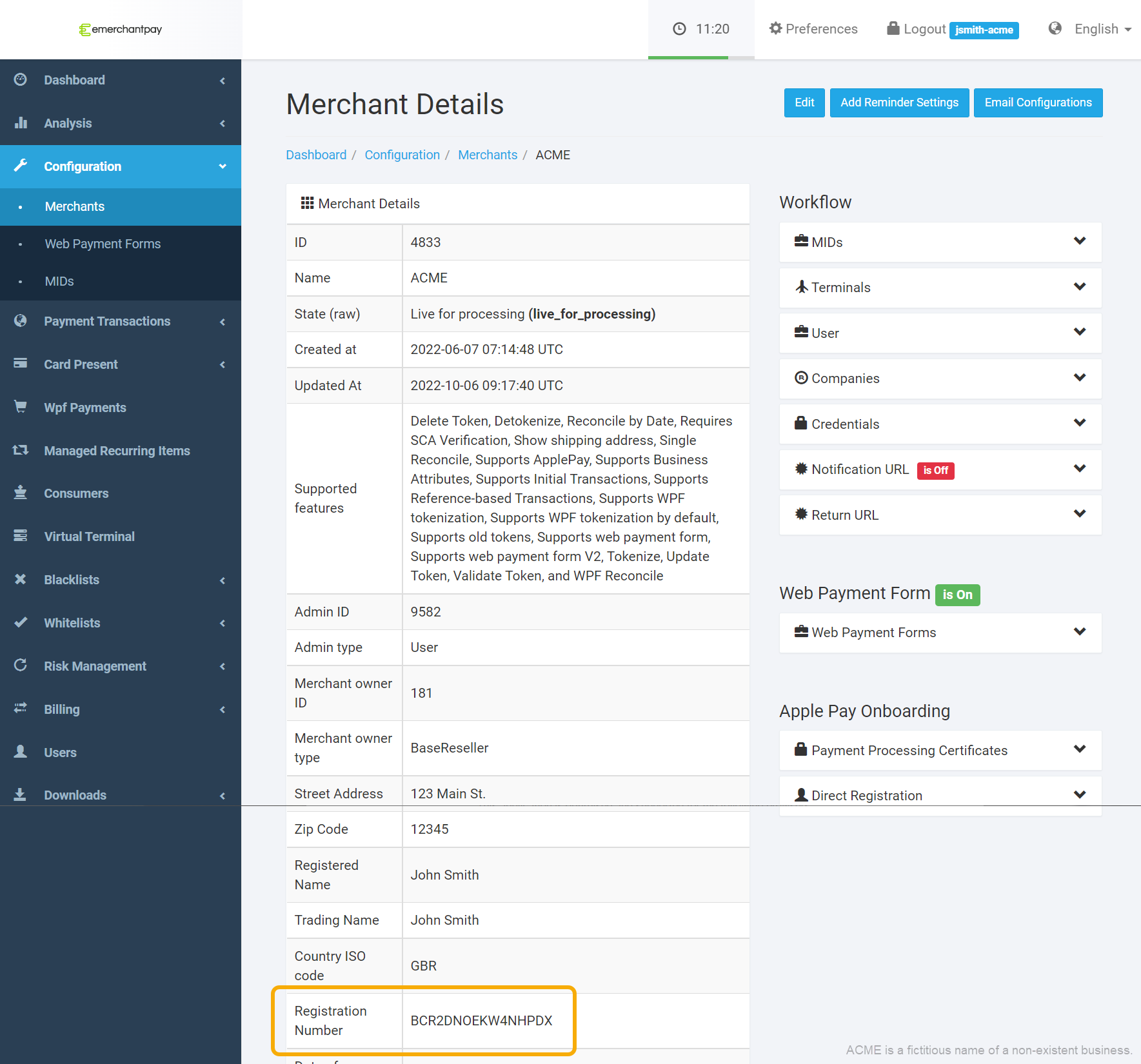
- Contact emerchantpay support to link your Merchant ID to your account. It will appear as the Registration Number in the Gateway Console.
For Web Payment Form (WPF) integrations
For WPF integrations:
- No Google Developer setup or Merchant ID is required, you can use emerchantpay’s Google Pay credentials.
- Contact emerchantpay support to have the credentials configured for your WPF processing.
- Add one of the following gateway domains to your Google Pay Console:
wpf.emerchantpay.netwpf.e-comprocessing.net
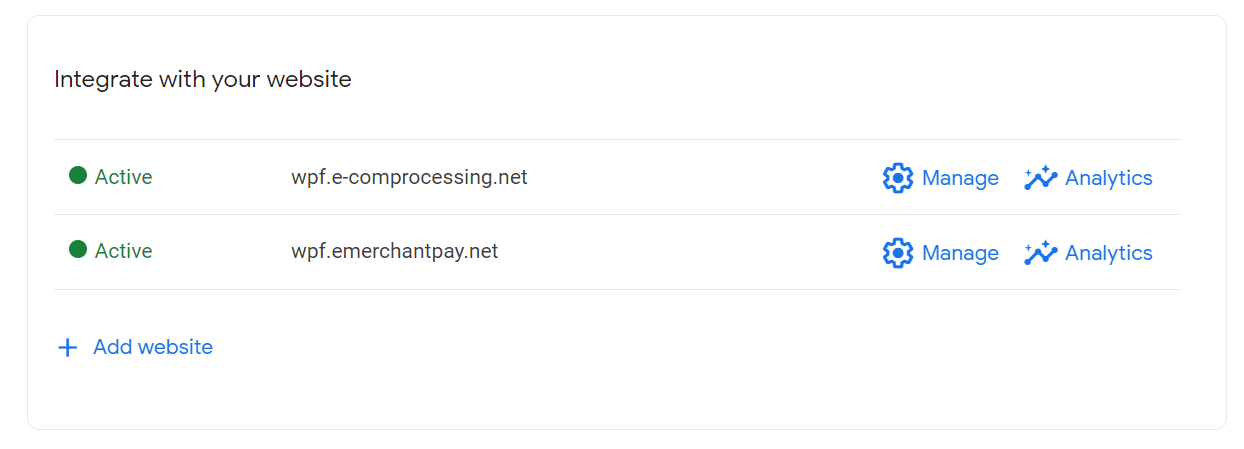
- In your Google Pay Console, go to Google Pay API > Integrate with your website, select Add Website, enter the domain, choose Gateway as the integration type, and submit the required buyflow screenshots.
Set up your environment
Complete the steps below to prepare your Google Pay integration, depending on your chosen method: Server-to-server integration or Web Payment Form.
Integration checklist
Add your Google Merchant ID for a server-to-server integration with the emerchantpay payment gateway

Your Google Merchant ID is located in the top-right corner of the Google Pay & Wallet Console:
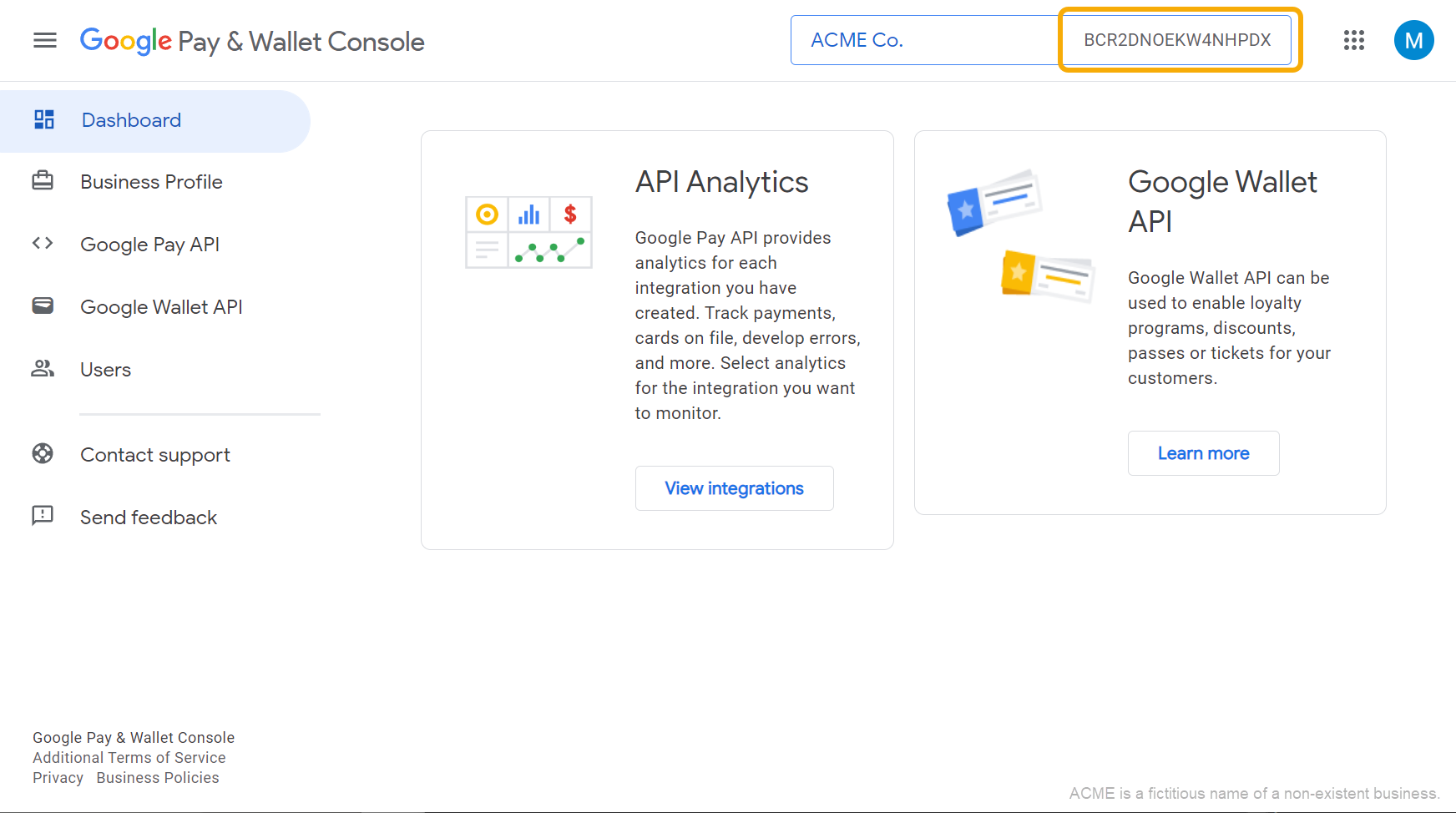
Once added by the emerchantpay support team, your Merchant ID will appear as the Registration Number in the Merchant Details section of the Gateway Console.

Configure Web Payment Form (WPF)
To process Google Pay payments using the emerchantpay Web Payment Form, you must add an emerchantpay gateway domain to your Google Pay merchant account:
- Open the Google Pay & Wallet Console.
- Select Google Pay API in the navigation menu.
- Under Integrate with your website, select Add Website.
- In the Website URL field, enter one of the following:
wpf.emerchantpay.netwpf.e-comprocessing.net
- In the Integration type field, select Gateway.
- Contact tech-support@emerchantpay.com to provide the required screenshots of your buyflow.
- Select Save.
- Optionally, to add another domain, repeat the process from step 3.
Once added, the domain will appear under Integrate with your website in your Google Pay Console.
Integrate Google Pay
Once your Google Pay environment is set up, you are ready to integrate. The steps below guide you through authorising, processing, and testing Google Pay payments using the emerchantpay payment gateway.
1. Authorise a Google Pay payment
After your customer selects Buy with Google Pay at checkout, the Google Pay API returns an encrypted payment token containing the unique transaction information.

Example of a unique payment token:
{
  “signature”: “…”,
  “intermediateSigningKey”: {
    “signedKey”: “{
      “keyValue”: “…”,
      “keyExpiration”: “…”
    }”,
    “signatures”: […]
  },
  “protocolVersion”: “…”,
  “signedMessage”: “{
    “encryptedMessage”: “…”,
    “ephemeralPublicKey”: “…”,
    “tag”: “…”
  }”
}2. Create a Google Pay payment request
After the payment token is received, create a Google Pay payment request to the emerchantpay payment gateway. Specify the encrypted payment token in payment_token and the payment type in payment_subtype.
Accepted Google Pay payment types:
- sale
- authorize
- Initial recurring payments with
recurring_typeset toinitial
Example of passing a Google Pay transaction request that contains a unique payment token:
<payment_transaction>
  <transaction_type>google_pay</transaction_type>
  <transaction_id>119643250547501c79d8295</transaction_id>
  <payment_subtype>authorize</payment_subtype>
  <payment_token>
    {
      “signature”: “…”,
      “intermediateSigningKey”: {
        “signedKey”: “{
          “keyValue”: “…”,
          “keyExpiration”: “…”
        }”,
        “signatures”: […]
      },
      “protocolVersion”: “…”,
      “signedMessage”: “{
        “encryptedMessage”: “…”,
        “ephemeralPublicKey”: “…”,
        “tag”: “…”
      }”
    }
  </payment_token>
</payment_transaction>3. Receive a response
You will receive a Success or Error response to your payment request.
Example of a Success response:
<payment_response>
  <transaction_type>google_pay</transaction_type>
  <status>approved</status>
  <mode>live</mode>
  <transaction_id>119643250547501c79d8295</transaction_id>
  <unique_id>44177a21403427eb96664a6d7e5d5d48</unique_id>
  <consumer_id>123456</consumer_id>
  <avs_response_code>5I</avs_response_code>
  <avs_response_text>Response provided by issuer processor; Address information not verified</avs_response_text>
  <authorization_code>345678</authorization_code>
  <response_code>00</response_code>
  <timestamp>2022-05-24T17:25:03Z</timestamp>
  <descriptor>Acme Co.</descriptor>
  <amount>100</amount>
  <currency>USD</currency>
  <sent_to_acquirer>true</sent_to_acquirer>
  <scheme_transaction_identifier>019091214161031</scheme_transaction_identifier>
</payment_response>payment_subtype, you can capture and settle the customer transaction. See the emerchantpay Payment Gateway API Transactions documentation for more information.
4. Test your integration
Use a Google Pay test card to test your Google Pay integration:
- Add an item to your cart in your online store.
- Proceed to the checkout page and check out using Buy with Google Pay.
- Pay using one of the test card details.
- Log in to the emerchantpay Gateway Console.
- In the navigation menu, go to Payment transactions.
- Verify that the transaction appears at the top of the list and is successful.
5. Accept live payments
After you have successfully tested your Google Pay integration, you are ready to move to the production environment and accept live payments from your customers. Contact your emerchantpay Account Manager to obtain your login credentials for the production environment.
You are now ready to accept live payments from your customers using Google Pay.
Enforce 3D Secure authentication
Enforcing 3D Secure (3DS) provides additional control over the authentication of Google Pay PAN_ONLY payments and can help reduce chargeback exposure associated with unauthenticated PAN_ONLY transactions outside the EEA.
By default, 3DS authentication is triggered for Google Pay PAN_ONLY transactions in the European Economic Area (EEA). To enforce a 3DS authentication requirement for PAN_ONLY transactions outside the EEA, you must include the following optional top-level parameter in each WPF Create or S2S Google Pay payment request:
<force_threeds>true</force_threeds>
| Parameter value | Expected behaviour |
|---|---|
true |
Google Pay PAN_ONLY transactions trigger 3DS authentication for both WPF and S2S flows, including transactions outside the EEA. |
false |
The existing behaviour remains unchanged. 3DS authentication is triggered only for EEA PAN_ONLY transactions. |
| Parameter omitted |
The existing behaviour remains unchanged. 3DS authentication is triggered only for EEA PAN_ONLY transactions. |
Note the following limitations:
- The
force_threedsparameter applies only to Google PayPAN_ONLYtransactions. - Google Pay
CRYPTOGRAM_3DStransactions are not affected. - Forced 3DS is supported for both WPF and server-to-server Google Pay integrations.
Server-to-server request example
Add force_threeds set to true as a top-level element of the Google Pay payment request:
<payment_transaction>
  <transaction_type>google_pay</transaction_type>
  <transaction_id>BR-GPAY-S2S-001</transaction_id>
  <payment_subtype>sale</payment_subtype>
  <usage>Brazil Google Pay purchase with 3DS</usage>
  <remote_ip>245.253.2.12</remote_ip>
  <amount>100</amount>
  <currency>EUR</currency>
  <force_threeds>true</force_threeds>
  <notification_url>https://example.com/notifications</notification_url>
  <return_success_url>https://example.com/payment/success</return_success_url>
  <return_failure_url>https://example.com/payment/failure</return_failure_url>
  <customer_email>john.smith@example.com</customer_email>
  <customer_phone>+5511999999999</customer_phone>
  <billing_address>
    <first_name>John</first_name>
    <last_name>Smith</last_name>
    <address1>Avenida Paulista, 1000</address1>
    <zip_code>01310-100</zip_code>
    <city>Sao Paulo</city>
    <country>BR</country>
  </billing_address>
  <payment_token> … </payment_token>
</payment_transaction>
WPF request example
Add force_threeds set to true as a top-level element of the WPF Create request:
<wpf_payment>
  <transaction_id>BR-GPAY-WPF-001</transaction_id>
  <amount>100</amount>
  <currency>EUR</currency>
  <force_threeds>true</force_threeds>
  <threeds_v2_params> … </threeds_v2_params>
  <transaction_types>
    <transaction_type>
      <name>google_pay</name>
      <payment_subtype>sale</payment_subtype>
    </transaction_type>
  </transaction_types>
  <notification_url>https://example.com/notifications</notification_url>
  <return_success_url>https://example.com/payment/success</return_success_url>
  <return_failure_url>https://example.com/payment/failure</return_failure_url>
  <return_cancel_url>https://example.com/payment/cancel</return_cancel_url>
  <customer_email>john.smith@example.com</customer_email>
  <customer_phone>+5511999999999</customer_phone>
  <billing_address>
    <first_name>John</first_name>
    <last_name>Smith</last_name>
    <address1>Avenida Paulista, 1000</address1>
    <zip_code>01310-100</zip_code>
    <city>Sao Paulo</city>
    <country>BR</country>
  </billing_address>
</wpf_payment>
Google Pay is a trademark of Google LLC.